Meters and readings
Members submit their readings from a phone, an admin approves them, and every approved reading becomes a charge. This is the whole cycle.
1. Register and fit a meter (admin)
- Open Meters and click Add meter: the Meter number, the service it measures and the Starting reading. The meter is now In store.
- Fit it by subscribing the plot to that service and choosing Fit a meter from store — see Services and tariffs.
2. Submit a reading
- A member opens You → Meters & readings and clicks Submit reading. Staff use Readings → Submit reading and pick the meter.
- Enter the New reading and the Read on date. The form shows the previous reading, the consumption and the estimated charge.
- Click Submit.
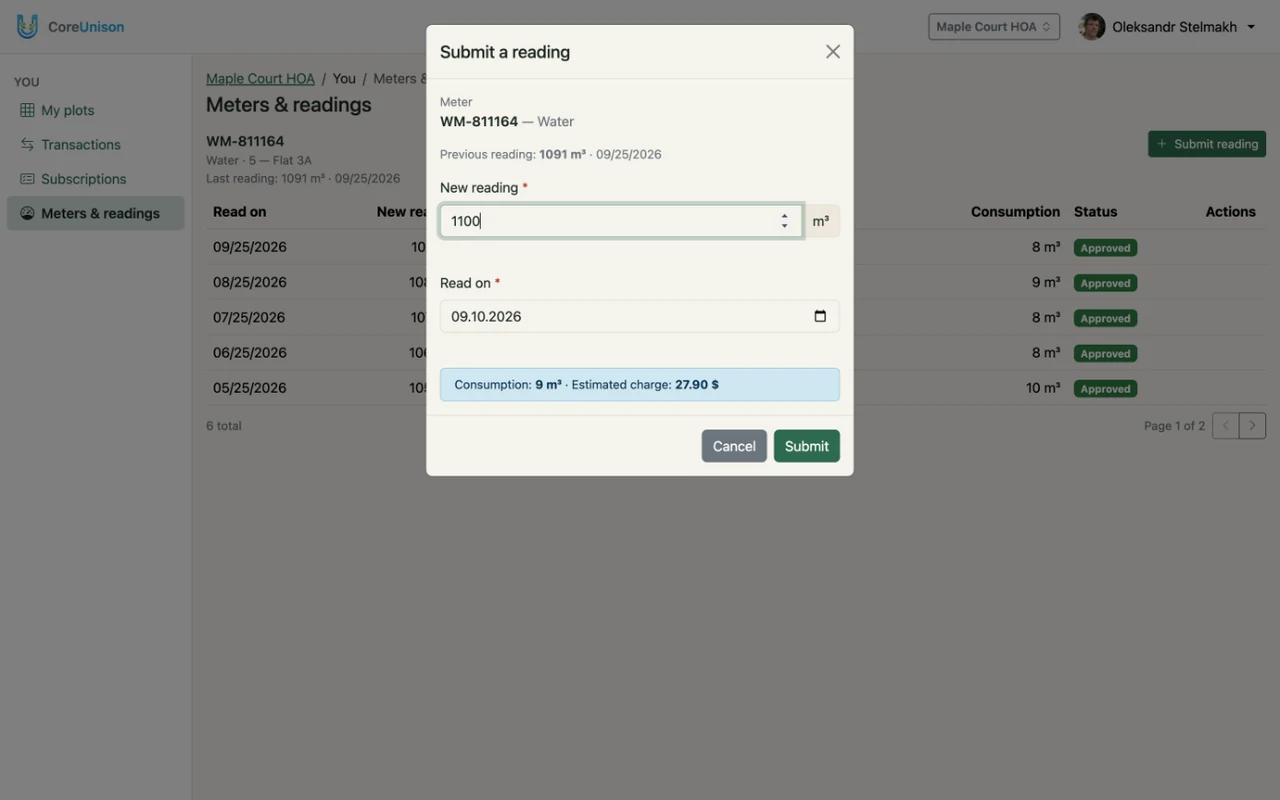
The form refuses a value lower than the previous one, a date in the future, or a second reading for the same month — unless the earlier one was rejected.
3. Approve or reject (admin)
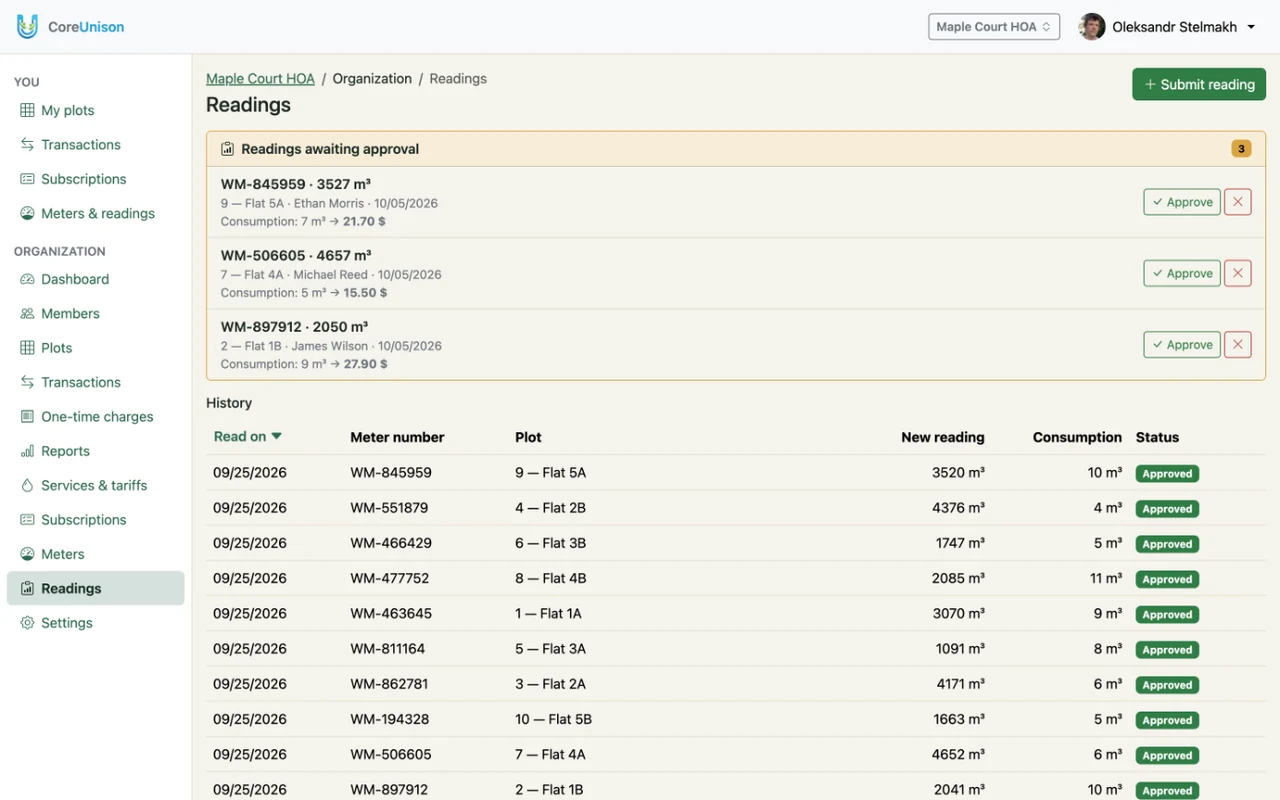
- Open Readings: new ones wait in Readings awaiting approval, and the dashboard shows how many.
- Approve charges the consumption × the tariff to the plot and updates the meter. The charge starts as pending, like any other.
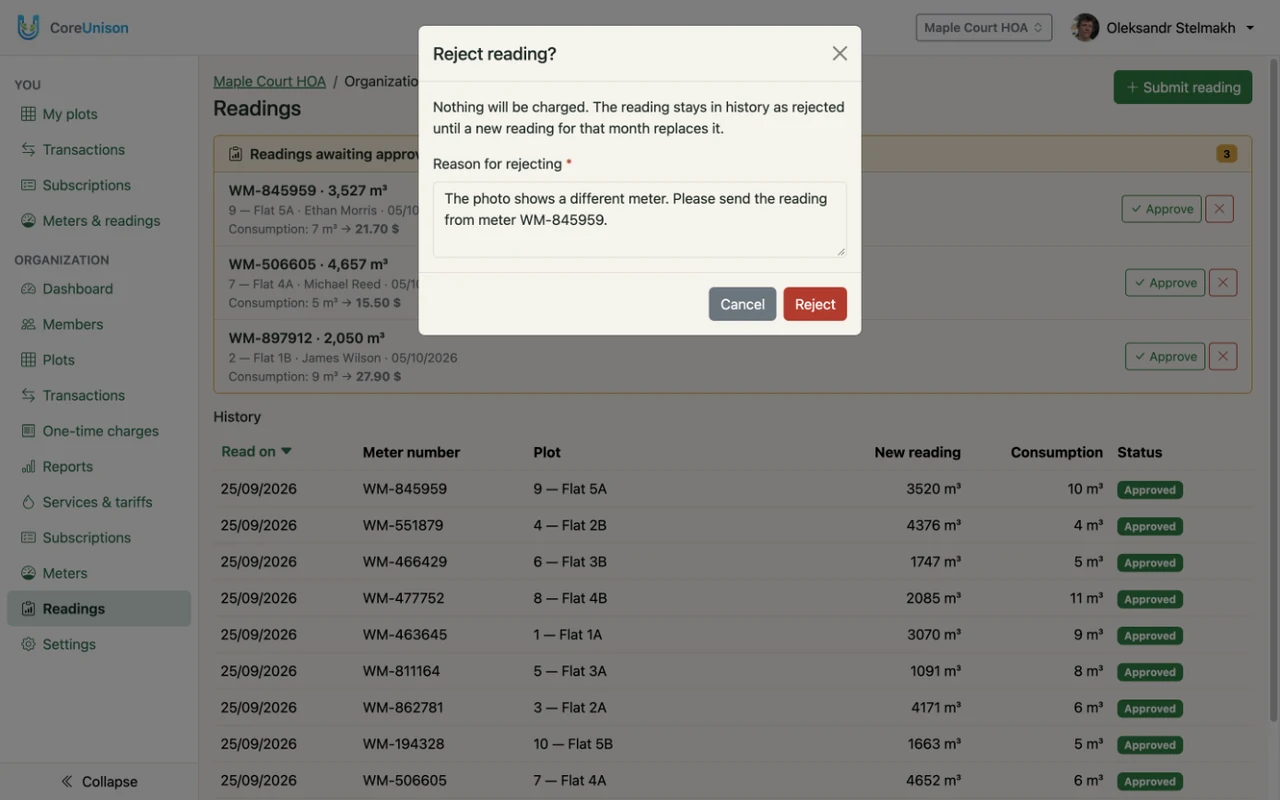
- Reject asks for a Reason for rejecting. Nothing is charged; the member sees the reason and can submit that month's reading again.
Good to know
- The tariff at the moment of approval is used; changing it later doesn't rewrite old charges.
- Only admins approve readings; accountants see them.