Create your organization and invite members
Everything starts with an organization: your HOA, garden community or garage co-op. Setting one up takes a few minutes, and inviting people takes one message.
1. Create your account
- Open the app and click Don't have an account? Create one.
- Enter your email and a password of at least 6 characters, then click Create account — or use Continue with Google.
2. Create the organization
- Click Create an organization.
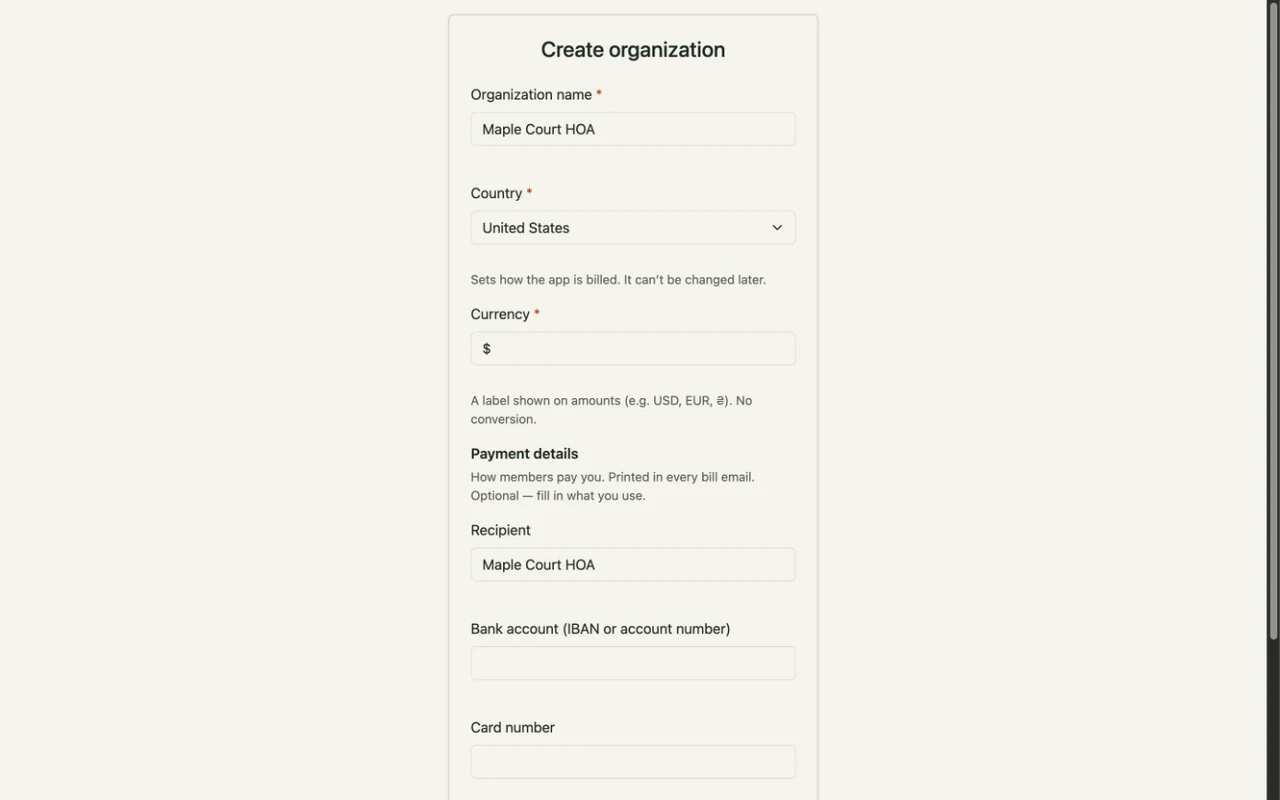
- Enter the Organization name and Currency, and choose the country carefully: it sets the price, and it can't be changed later.
- Click Create, then confirm in Create organization?. The dashboard opens, and you are the organization's admin.
3. Invite members
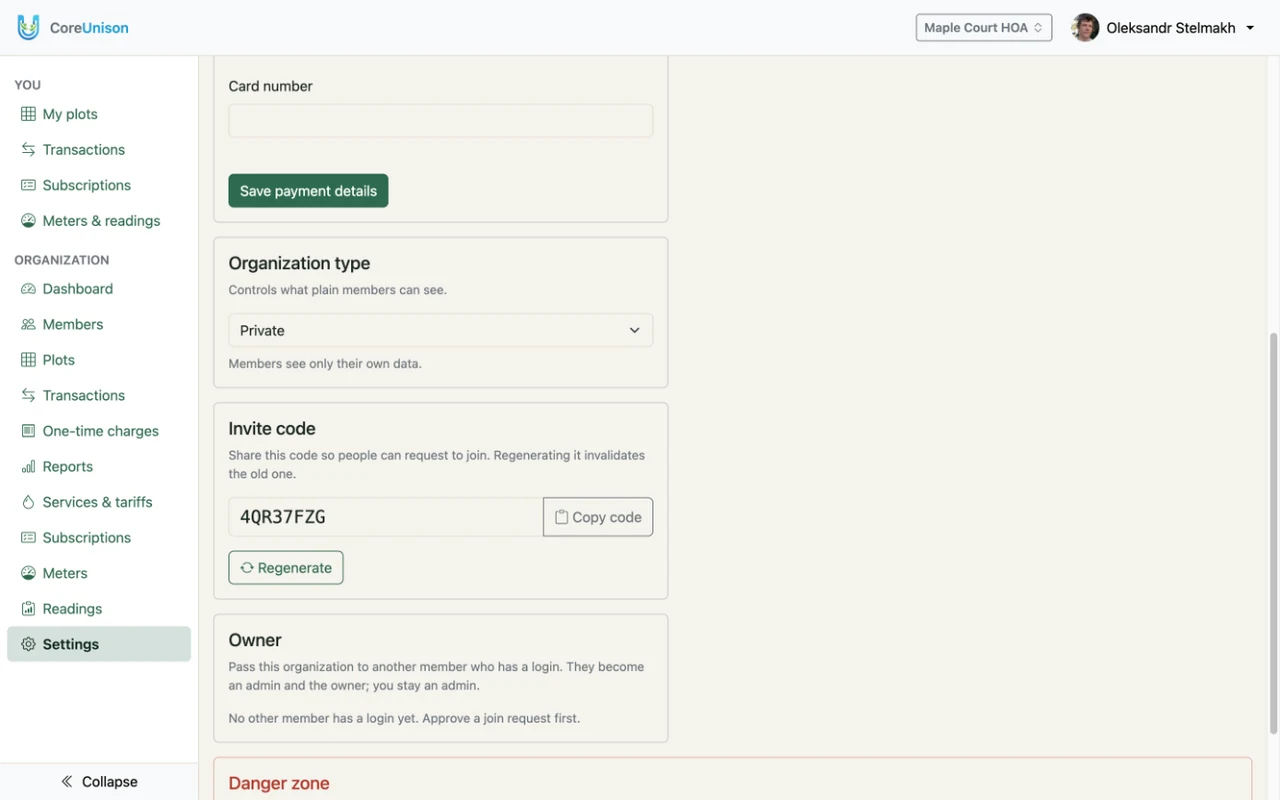
- Open Settings, find the Invite code and click Copy code. Send it to the community chat or pin it to the notice board.
- Each person signs up, chooses Connect to an organization, enters the code and clicks Request to join.
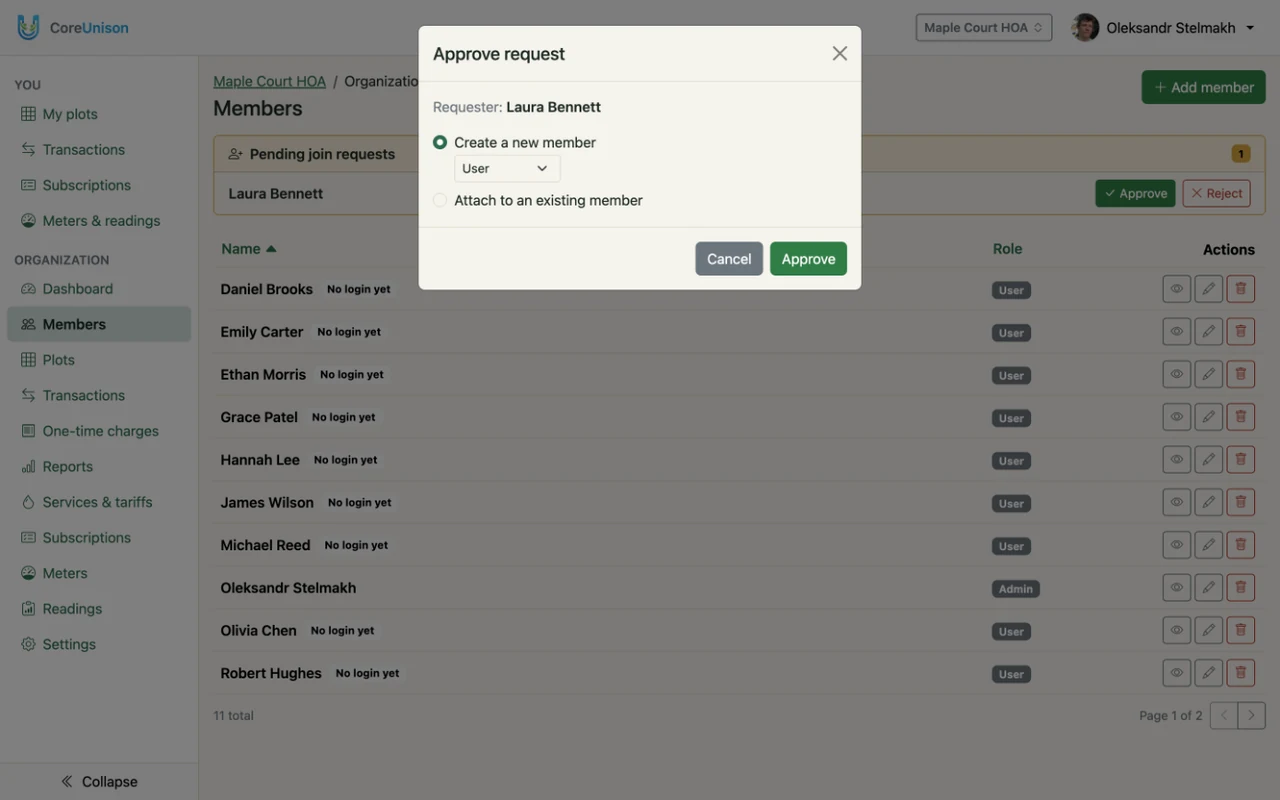
- Their request appears under Members in Pending join requests. Click Approve and choose Create a new member with a role, or Attach to an existing member if you already added them. Reject declines the request.
Good to know
- You don't have to wait for anyone: add members yourself and attach their login when they join, with their history already in place.
- One account can belong to several organizations, with a different role in each.
- Fill in Payment details in Settings — they are printed in every bill email, so members know where to pay. Money goes straight to the organization, never through CoreUnison.